Lengths
Choose this mode when the quantity lives along a path. Trades often use it for runs, perimeter items, cable, pipe, or trim.
To measure lengths, areas, and counts on PDF plans, open the drawing in a takeoff tool, calibrate the scale, then use the correct measurement mode for each quantity type. This is the standard workflow used by contractors and estimators to turn plan sheets into takeoff quantities faster.
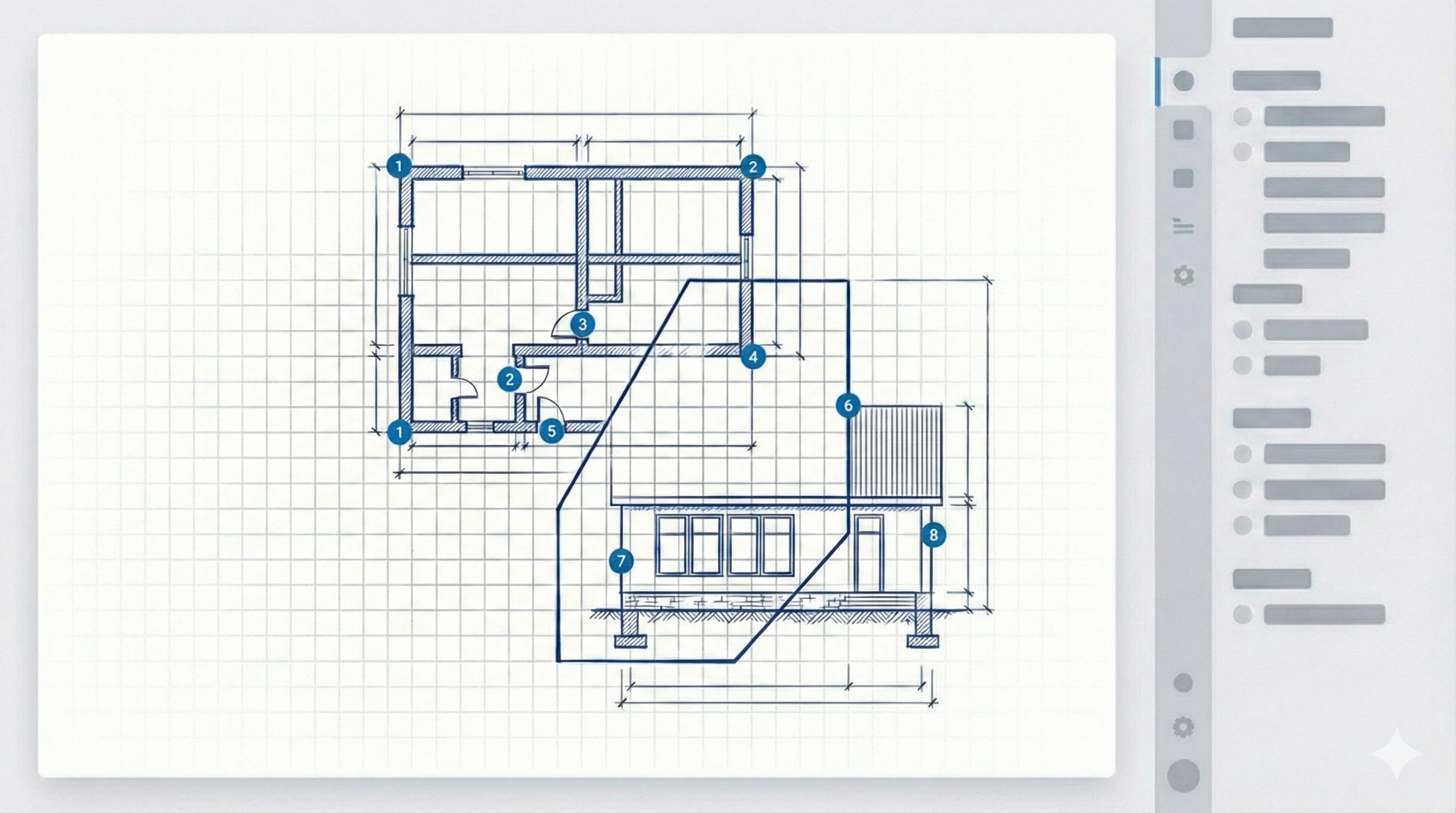
The biggest mistake is jumping straight into quantities before scale and plan version are confirmed. This order keeps the workflow clean.
Choose this mode when the quantity lives along a path. Trades often use it for runs, perimeter items, cable, pipe, or trim.
Choose this mode when the quantity is spread across a surface. Typical examples are slab coverage, flooring, paint, roofing, or wall area.
Choose this mode when the plan contains repeated items you need to total quickly, such as outlets, fixtures, doors, or drains.
Upload a plan, calibrate scale, and test length, area, and count workflows without installing heavy desktop software.
These are usually process problems, not software problems.
If scale is off, every length and area after it is wrong. This is the first thing to verify.
Measuring from an outdated drawing can invalidate the entire takeoff even if the measurement process itself was correct.
Forcing count problems into length mode or area problems into count mode usually creates messy and hard-to-check results.
These are the direct-answer questions most often tied to measurement searches.
The first step is calibrating the scale correctly. Without that, every quantity after it can be wrong.
Common takeoff quantities include lengths, areas, and counts, depending on the trade and drawing type.
Yes. Browser-based workflows can support desktop and mobile access, which is useful for teams working across office and field environments.